How to Convert Apple Music to MP3 (Free & Paid Methods 2026)
Want to convert Apple Music to MP3 for offline playback on any device? While Apple Music allows downloads within its app, it doesn’t let you save songs as standard MP3 files.
If you want to keep your music permanently or play it outside the Apple Music app, you’ll need the right method.
In this guide, we’ll show you how to convert Apple Music to MP3 using a professional tool.

1. Can You download Apple Music to MP3?
Yes, but with third-party Apple Music downloader. You cannot directly download Apple Music songs as MP3 files using the official Apple Music app.
Apple Music streams are protected by DRM (Digital Rights Management), which means downloaded songs can only be played within the app and cannot be exported or converted into standard formats like MP3.
2. Best Way to download Apple Music to MP3
Boilsoft Apple Music Converter is specially designed for converting Apple Music to MP3, M4A and other formats. After the conversion, you can play the music files on any MP3 player. Learn more: Apple Music Converter for Mac | Apple Music Converter for Windows. This is the most reliable way to convert Apple Music to MP3 without quality loss.
3. How to download Apple Music to MP3 (Step-by-Step)
Want to convert Apple Music to MP3? You can learn how to convert Apple Music to MP3 from below simple steps.
Step 1 Run Boilsoft Apple Music Converter
Download, install and run Boilsoft Apple Music Converter on your Mac or Windows. The interface is shown as below.
Boilsoft Apple Music Converter for Mac
Boilsoft Apple Music Converter for Windows
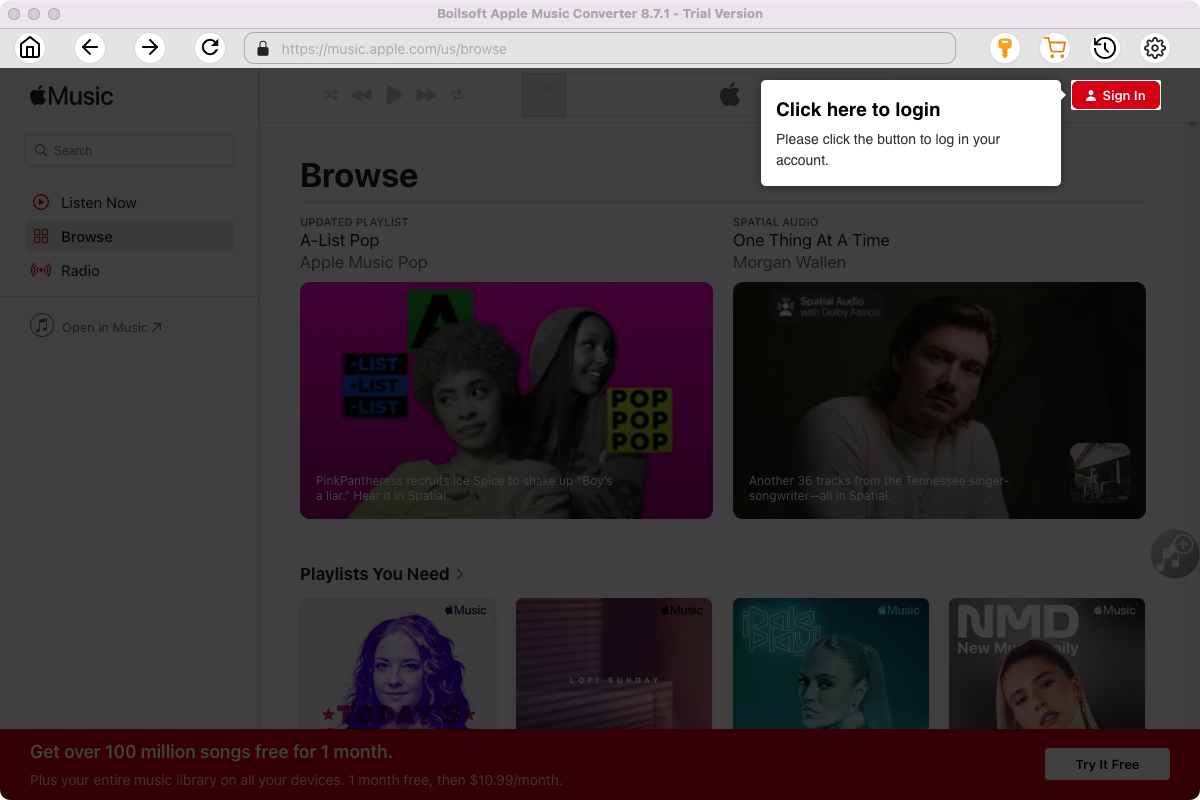
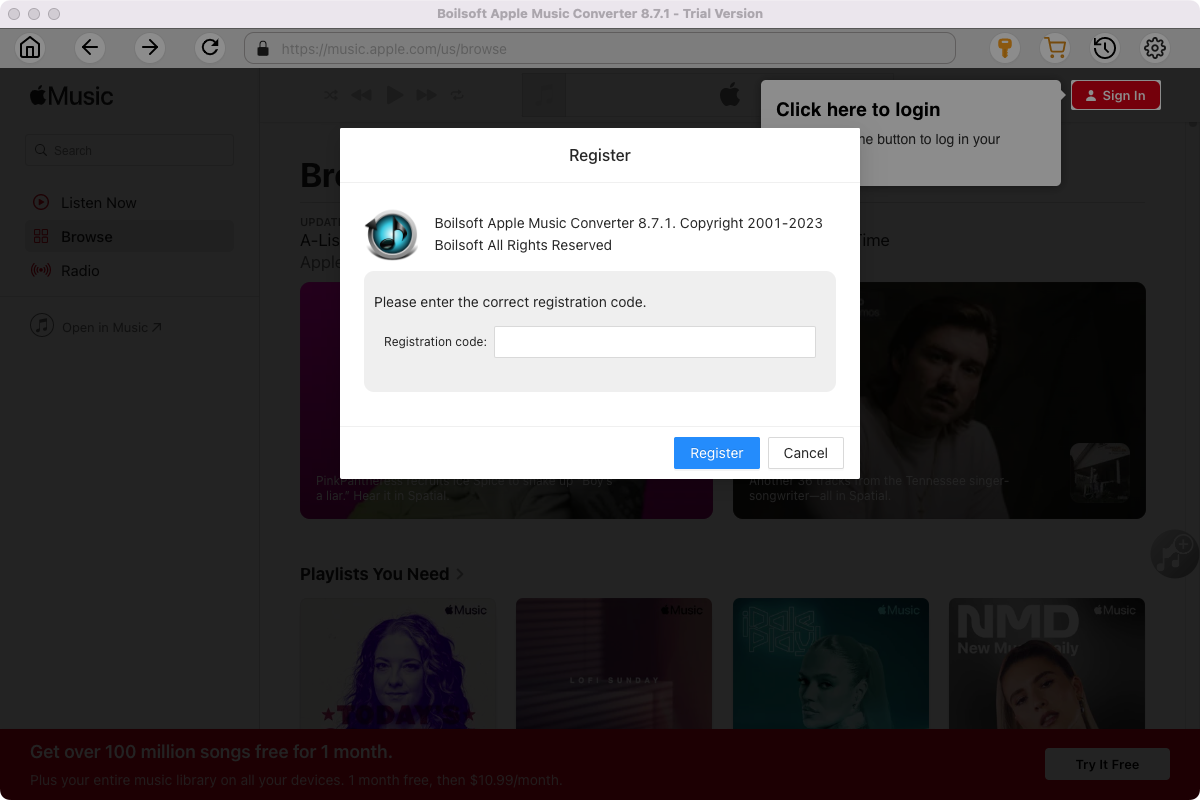
Click the key icon on the top right corner to register the tool if you have purchased the license. If not, go ahead with the free trial version.
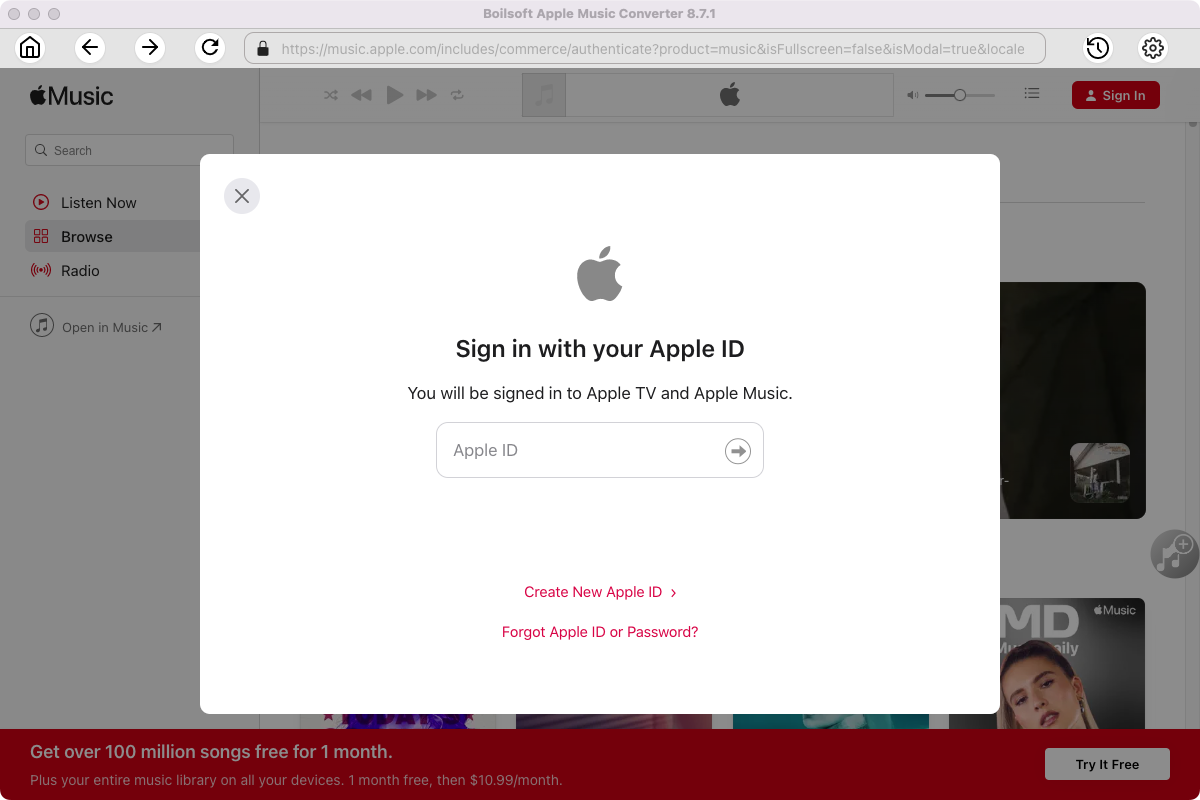
Click Sign in and log in your Apple ID.
Step 2 Choose output format
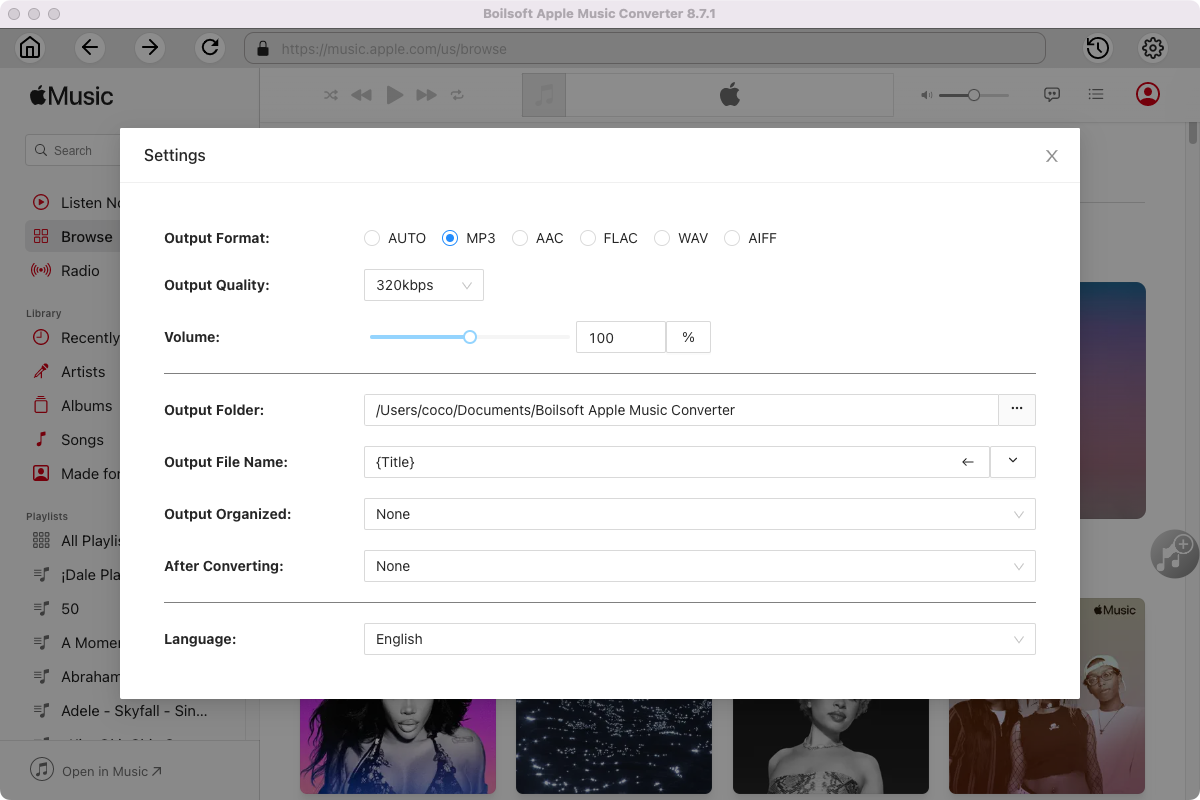
The default format is M4A. If you want to change output format (MP3, AAC, FLAC, WAV or AIFF), click the gear button on the top right corner.
You can also set music quality, volume, output folder, output file name, etc.
Step 3 Add Apple Music songs, albums, playlists or artists
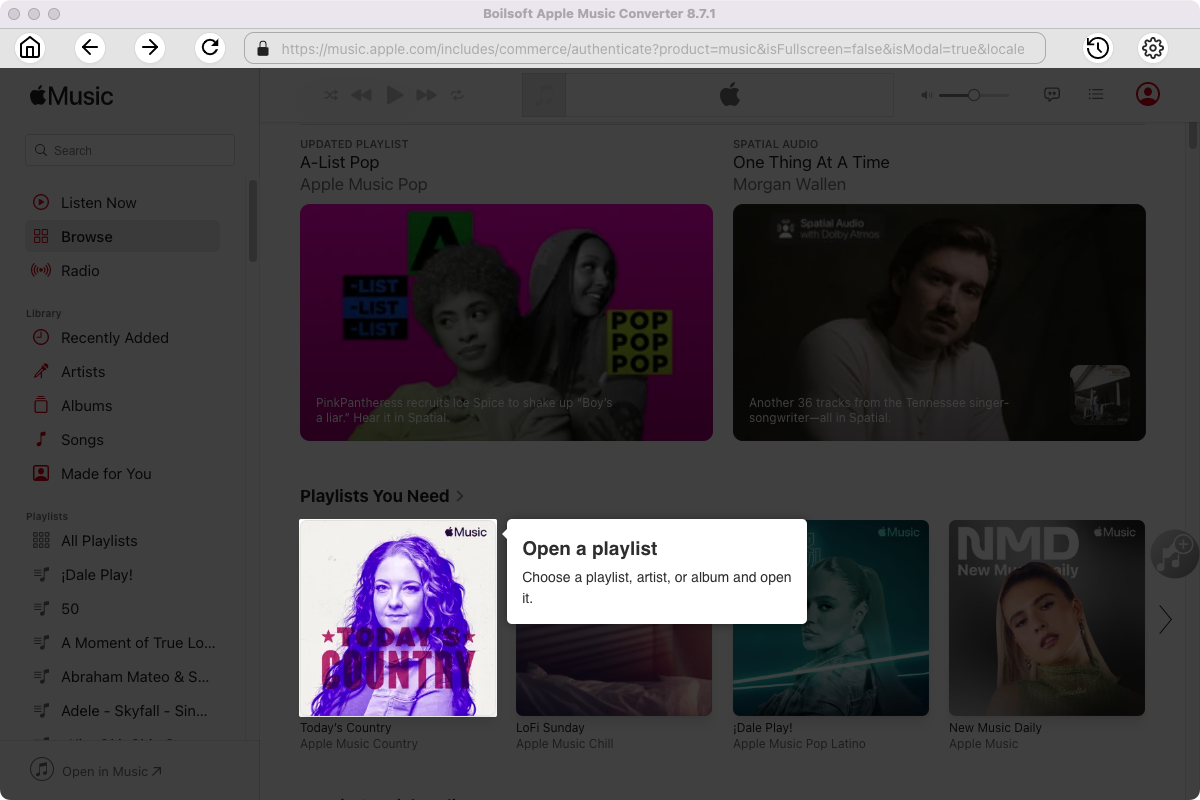
Follow the on-screen instructions to open a playlist or album.
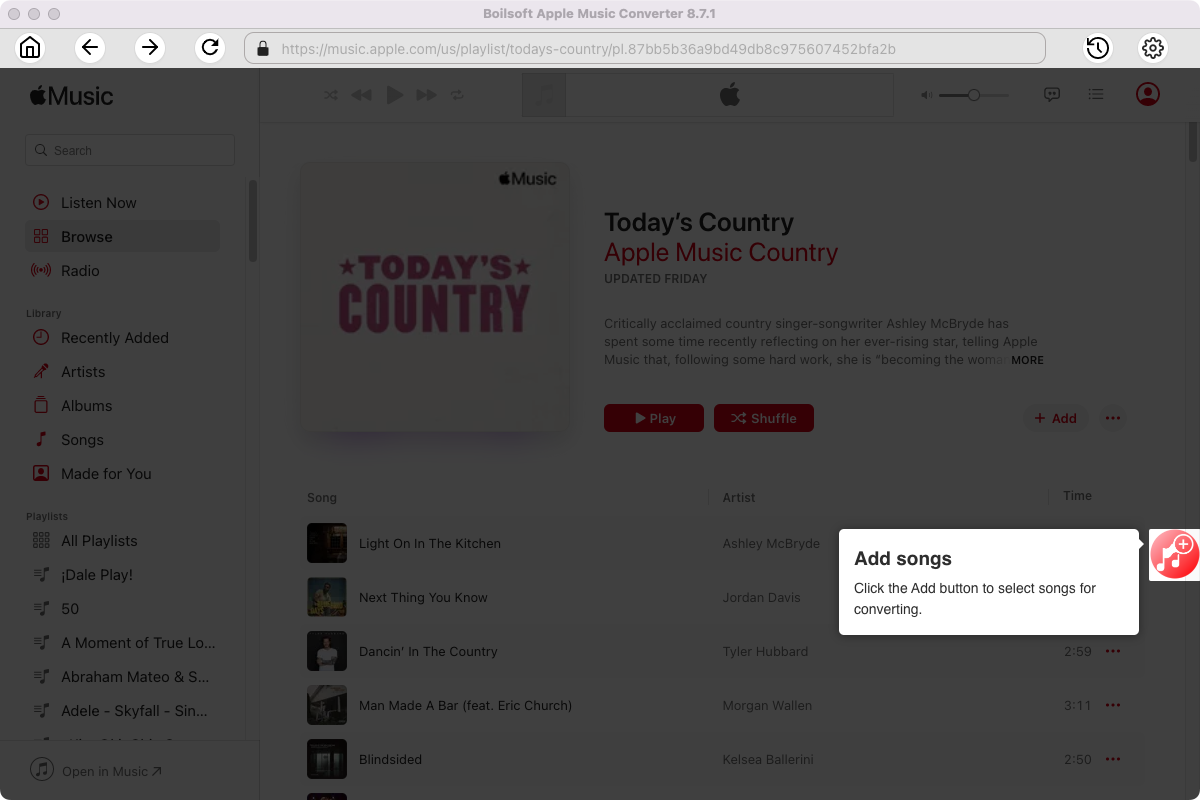
Click Add songs to load all songs in the album or playlist.
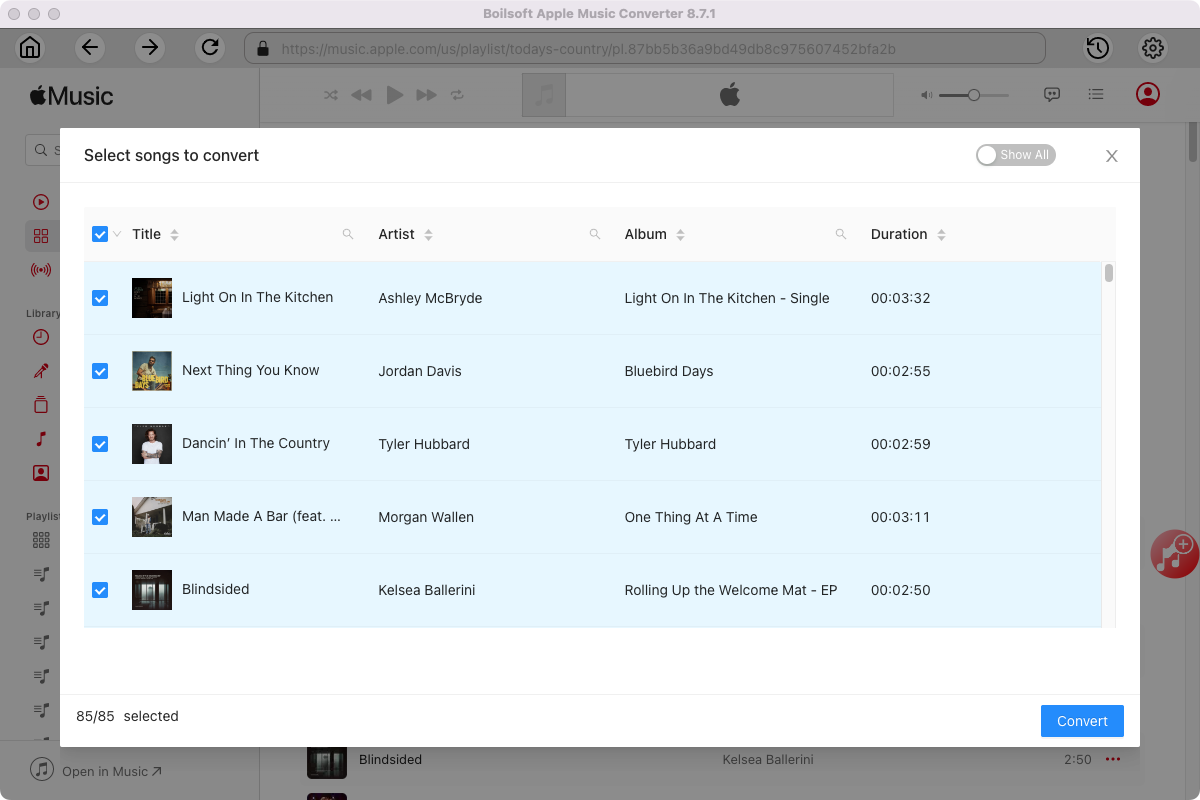
Step 4 Start to convert Apple Music songs
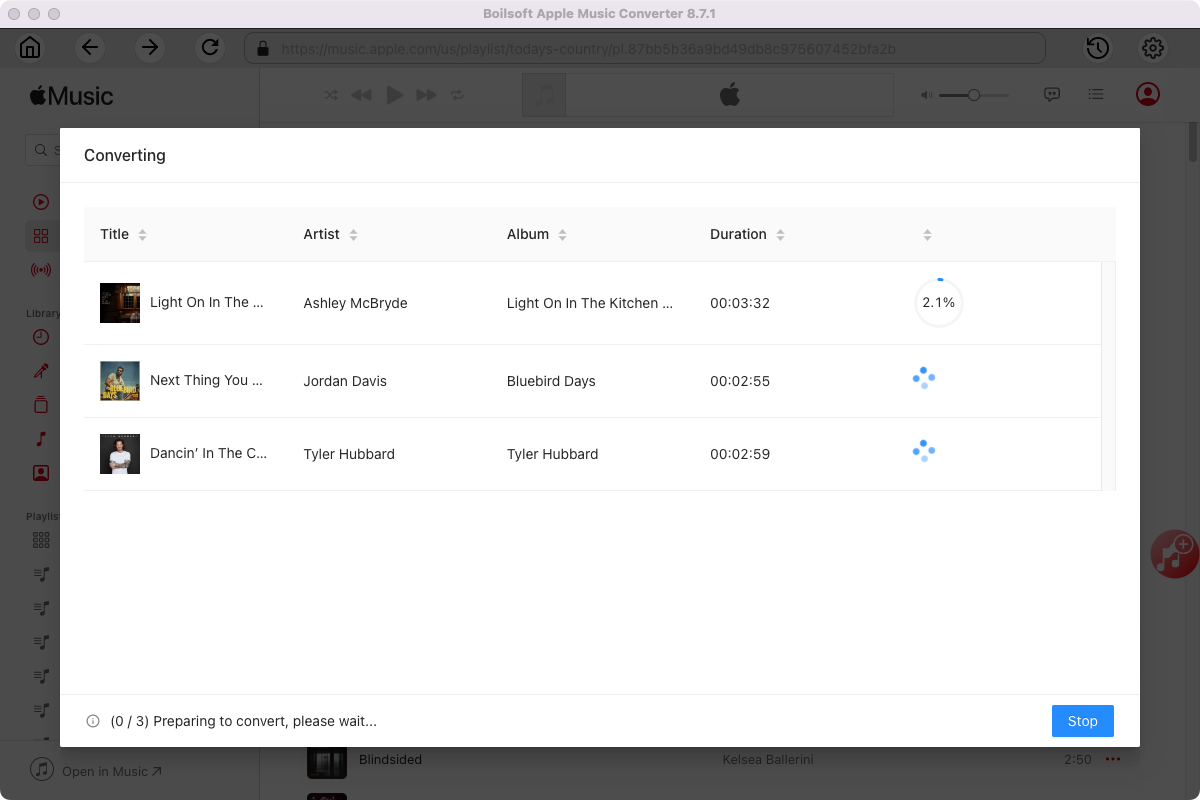
Click Convert icon to start converting Apple Music to the format you choose.
After conversion, you will get the drm-free music in plain formats and play them anywhere you want without any limitations.
4. Benefits of downloading Apple Music to MP3
Downloading Apple Music in MP3 format gives you greater flexibility and control over your music library. Here are the main benefits:
1. Play music on any device
The MP3 format is widely supported, which means you can play your downloaded Apple Music songs on virtually any device without restriction, including smartphones, MP3 players, car audio systems, and smart TVs.
2. Keep Your Music Forever
Songs downloaded in the Apple Music app are tied to your subscription. Once your subscription ends, you will no longer be able to access these songs. Convert Apple Music to MP3 format to keep your music forever.
3. Unlimited offline listening
With MP3 files, you can listen to your favorite songs anytime, anywhere—even even without an internet connection or the Apple Music app.
4. Remove DRM Restrictions
Apple Music songs are protected by DRM, which limits how and where you can play them. Converting them to MP3 format removes these restrictions, giving you full control over your music.
5. Easy Backup and Transfer
MP3 files are easy to store, copy, and transfer. You can back up your music to an external hard drive, USB device, or cloud storage without encountering compatibility issues.
6. Versatile Applications
Once converted to MP3 format, you can use this music however you like—whether for editing, creating playlists, or playing it on unsupported devices.
5. MP3 vs FLAC: Which One Should You Choose?
When converting Apple Music, choosing the right audio format is important. MP3 and FLAC are the two most popular options but with significant differences.
MP3 is a compressed audio format that reduces file size while maintaining good sound quality. This format is widely supported by almost all devices, including smartphones, MP3 players, and car audio systems.
FLAC (Free Lossless Audio Codec) is a lossless format that fully preserves the original sound quality without any loss due to compression. However, FLAC files are large, and not all devices support this format.
For most users, MP3 is the best choice due to its balance of quality, file size, and compatibility.
If you’re an audiophile or want the original sound quality, FLAC is the better option.
Related: How to download Apple Music to FLAC?
6. FAQs
Can I download Apple Music to MP3 for free?
Yes, some free methods are available, but they often come with limitations such as lower quality or slower speed.
Is it legal to convert Apple Music to MP3?
Converting music for personal use is generally acceptable, but sharing or distributing copyrighted content may violate laws.
Will I lose audio quality when converting?
With professional tools, you can convert Apple Music to MP3 with minimal or no quality loss.
Can I convert entire playlists to MP3?
Yes, Boilsoft Apple Music Converter supports batch conversion of playlists and albums.
Useful Tips : Movies and TV shows purchased from iTunes Store are also DRM-protected. If you want to remove DRM from iTunes movies and TV shows and convert them to MP4, try this iTunes Video DRM removal software - iTunes DRM Media Converter .
Read More
Tutorials


Copyright © 2023 Boilsoft Systems International Inc. All rights reserved.